
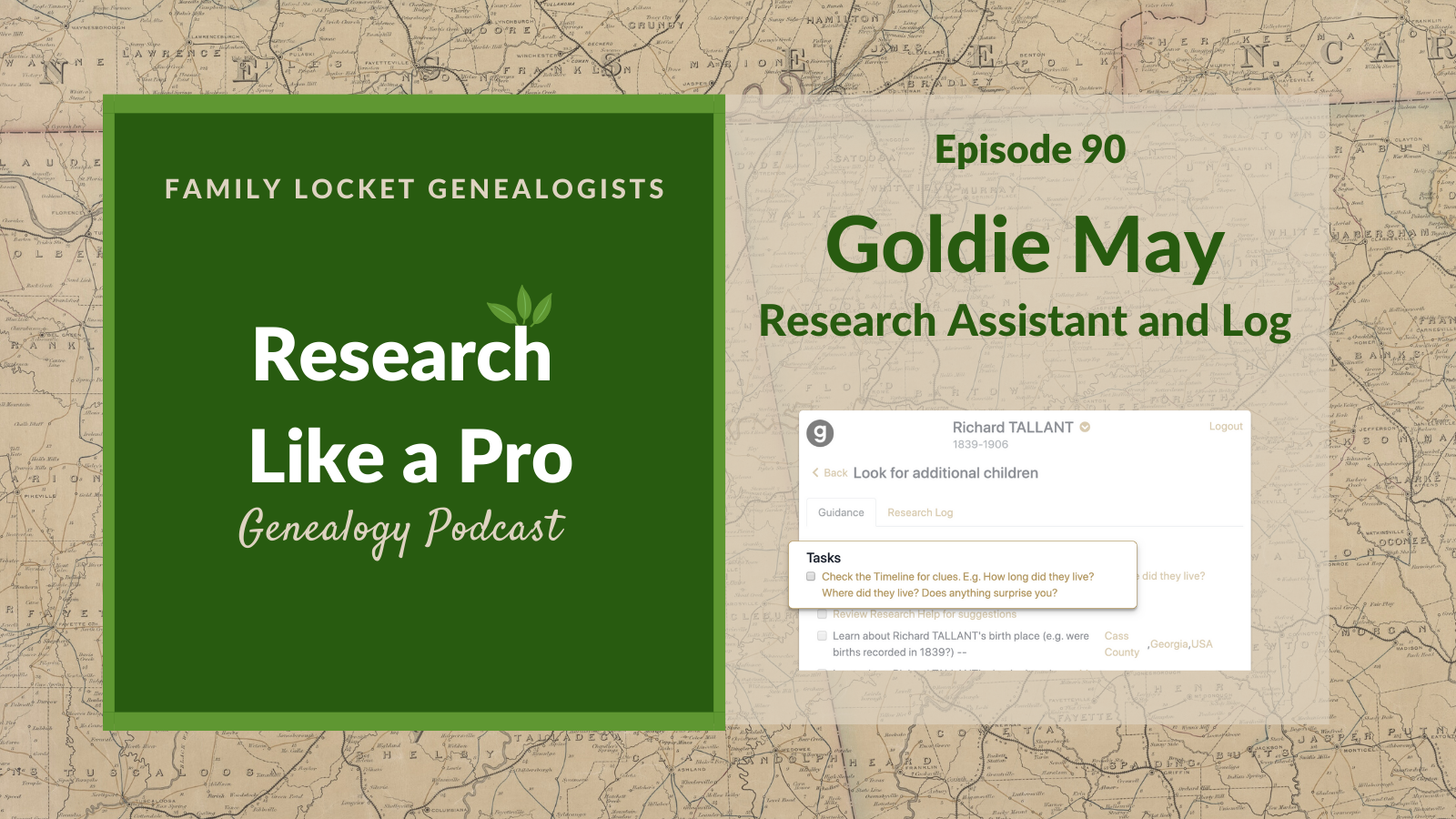
Today’s episode of Research Like a Pro is about Richard Miller’s new chrome extension, Goldie May. The extension logs each website you visit and offers helpful research guidance for research in the United States. Start with a person in your FamilySearch Family Tree, then set an objective. Goldie May advises you where to look for locality information, suggests reviewing the ancestor’s timeline, and reviewing the sources already attached. From there you can set additional tasks to do and continue to research. Richard hopes to add more locations outside U.S. research soon. Join us as we talk with Richard about this helpful tool!
Transcript
Nicole (1s):
This is Research Like a Pro episode 90: Goldie May. Welcome to Research Like a Pro a Genealogy Podcast about taking your research to the next level, hosted by Nicole Dyer and Diana Elder accredited genealogy professional. Diana and Nicole are the mother-daughter team at FamilyLocket.com and the creators of the Amazon bestselling book, Research Like a Pro a Genealogists Guide. I’m Nicole co-host of the podcast join Diana and me as we discuss how to stay organized, make progress in our research and solve difficult cases. Let’s go.
Nicole (44s):
Hi everyone, and welcome to the show. I’m Nicole Dyer, co-host of Research Like a Pro, and I’m here with my mother accredited genealogist, Diana Elder. Hi, Diana, how are you?
Diana (54s):
I’m doing well. And I’m excited to have our guest on the podcast today. We have Richard Miller here. Hi Richard.
Richard Miller (1m 2s):
Hi Diana. Hi Nicole.
Nicole (1m 3s):
Hey.
Diana (1m 4s):
We are excited to talk with Richard because he is a developer of a brand new product, a new Chrome extension about research logs. I’m going to talk all about it today, but first I’ll just do a little introduction. We actually met Richard for the second time at the BYU Family History and Genealogy Conference last summer. And I say the second time, because he had previously worked with us in a different company several years ago, so kind of fun to see him again and be in the genealogy world together. So anyway, welcome Richard. We’re excited to talk to you about your new product called Goldie May.
Richard Miller (1m 43s):
Yeah. Thanks. I’m excited to talk to you and thanks for having me on the podcast.
Nicole (1m 47s):
Well, let’s learn about Goldie May first. So tell us what is Goldie May?
Richard Miller (1m 52s):
Yeah, Goldie May is a Chrome extension and service that you can use to help you in your genealogy research. So the idea is that you’ll install this extension in your Chrome browser, and then as you’re doing genealogy research on FamilySearch and Ancestry, and wherever else you might go, Goldie May is a little window off to the side that will guide you through the research process and help you know, where to go next and help you track what you’re doing. And it also provides a research log. So while you’re visiting various websites, as you’re doing your research, it keeps track of everywhere you’ve gone and what time it was when you went there. And then you can add notes and comments to your log.
Richard Miller (2m 34s):
So that’s kind of the overall view of it.
Nicole (2m 37s):
That’s wonderful. You know, when I first started researching in earnest, I really wanted a tool like this to help me with keeping track of all my research. I just thought it’s so hard to keep track of all the places that we go and, and the websites that we visit as we’re doing research. And of course now I’ve learned to be more disciplined and I do a better job with keeping track and logging my research in a spreadsheet. But this is a wonderful tool for helping us get started. I think a lot of people are at that place of just feeling overwhelmed by the idea of having to make a research log. So this is an amazing tool.
Richard Miller (3m 12s):
Yeah. Thanks. I appreciate that. That’s been my perception too, that professionals use the research log because it’s necessary to show to the client what work you’ve done. And there’s certainly value for non-professionals to use one, but it can just be so tedious to keep track of everywhere you’ve gone and say what you found there or what you didn’t find there. And so a lot of people just don’t take the time to do it. It’s just not worth the time if they don’t have to. So I’m hoping this will really make that a lot easier than it’s been in the past. You
Nicole (3m 44s):
Thank you. So do you have to start with FamilySearch or how do you get started?
Richard Miller (3m 47s):
Yeah. Good question. So you’ll go to GoldieMay.com and that’s where you’ll see a button to go over to the Chrome web store and that’s where you can hit install. And then once you have Goldie May installed in your Chrome browser, you’ll see a little black G icon up in the top, right in your, your menu bar. And so you’ll click the G to get started and it will open up the side window. And so you’ll have your main window on the left and the Goldie May side window on the right. And then it’ll ask you to log in with your FamilySearch accounts. So right now it does require a FamilySearch account, but in the future, we’ll have other options for logging in. And then the idea is once you’re logged in and you want to go to your FamilySearch tree on the left and just pick someone you want to start researching.
Richard Miller (4m 33s):
So you’ll go to your tree, choose someone that you’re interested in. And then on the right Goldie May will offer you some research objectives. So these are suggested objectives that might apply to this person you’re looking at, or you can write your own objective. And then once you’ve written out an objective and you hit go, then it opens up a, a list of tasks. And these are the tasks that you can do to work on that particular objective. So right now you do need to start with the FamilySearch account and you do need to start from the FamilySearch tree, but then as you’re researching on Ancestry, or MyHeritage, or Find My Past, or Google,or anywhere else, you might go that logs everywhere that you’ve been.
Richard Miller (5m 18s):
And in the future, we’ll offer the ability to start from an Ancestry tree or somewhere else besides the FamilySearch tree.
Nicole (5m 27s):
That’s wonderful. Thank you for that really clear explanation.
Richard Miller (5m 30s):
Yeah.
Diana (5m 31s):
So as you were talking, I’m really thinking about Goldie May as an alternative to what my old school method was, which was just The Research notebook. And I tell people who are beginning just to start with a notebook for those simple searches, you know, like on FamilySearch, when you’re attaching hints and you’re just doing some simple things, just keep track of what you were doing. And this obviously is a wonderful replacement for that because it’s attached to each person you’re working on and it’s available from any device you’re using, and you can do so much more with it. So I’m really excited about this because just like you said, not everybody wants to do the full on research log for every little searching thing that you’re doing.
Diana (6m 14s):
You know, maybe you’re just starting with a new family and you’re just doing some quick work on them and you don’t need a big project for them, so this would be the perfect way to track your research, in my opinion. Is that kind of what you’re thinking, Richard?
Richard Miller (6m 28s):
Yeah. I appreciate you saying that. I think when I first met Nicole at the BYU Family History Conference or we met, I showed Nicole an early version of this and Nicole, I think you, you said something like the ugly log, you wanted to kind of track everywhere you’ve been, even in all the detail and the messiness and the later you have to kind of pull all the gems out of that messy log or that ugly log to make your, your nice log that you’re going to give to a client. But yeah, but before you get to that point, you just want to track everywhere you’ve gone, wherever you, where you’ve been. And so Diana, your idea of this being a replacement for the simpler research notebook is what you call it, right?
Richard Miller (7m 9s):
That would be a good, that’d be a good fit because you’re not doing professional work here. You’re just trying to track everywhere you’ve been. And isn’t it true that you would use typically a research notebook for your personal work on the tree versus your professional work?
Diana (7m 24s):
Yes, because my professional work is really clearly defined as a specific objective. And so I have to go really deep on different record types. And often when I’m working on the FamilySearch family tree, I’m working more on descendancy type things, you know, flushing out some of those collateral branches. And I don’t need to do a full on research project. I just need to look for some birth and death, marriage information, you know, find the censuses for the family if nobody has worked on that in FamilySearch. And so, you know, I don’t feel like I want to do something really detailed. I just want to sit down for an hour and do some of the easy stuff.
Diana (8m 4s):
You know, they call it in the Genealogy world, the low-hanging fruit. And so it’s really nice to have a way to track some of that research you’re doing, you know, Sunday afternoon stuff. That’s just sounding to me like a perfect way to make good use of those little bits of research time. So I’m excited about this.
Richard Miller (8m 22s):
Yeah, I hope so.
Diana (8m 23s):
So let me ask, why did you name this Goldie May? I had somebody come up to me and they said, I was just over at this booth and it was about an online research log tool and it had a woman’s name. Do you know what that is? And I said, was a Goldie May? so anyway, it was really funny. I’m glad that we had already talked to you so that I knew what he was talking about.
Richard Miller (8m 44s):
Oh that’s good, yeah.
Diana (8m 45s):
So why did you name it Goldie May?
Richard Miller (8m 47s):
Goldie May is the combination of two names from my family and my wife’s family. Goldie is my great grandmother. She was the last living great-grandparent that I had and she lived a long life. So I knew her as late as my freshman year of college. And then May is a name from my wife’s side of the family from Zeti May Nebeker, who was a pioneer era ancestor. So we thought we just combined the two names and we made Goldie May.
Diana (9m 14s):
Well, that’s awesome. I think it’s fun to have something a little unusual so people can get it in their head and not forget what it is. And I love that it has the connection to family history too.
Richard Miller (9m 24s):
Yeah, it was meaningful for us. My wife really enjoys reading stories from her family tree and from some of her impressive and special ancestors. So it was nice to use a name from one of those family members in her tree.
Nicole (9m 39s):
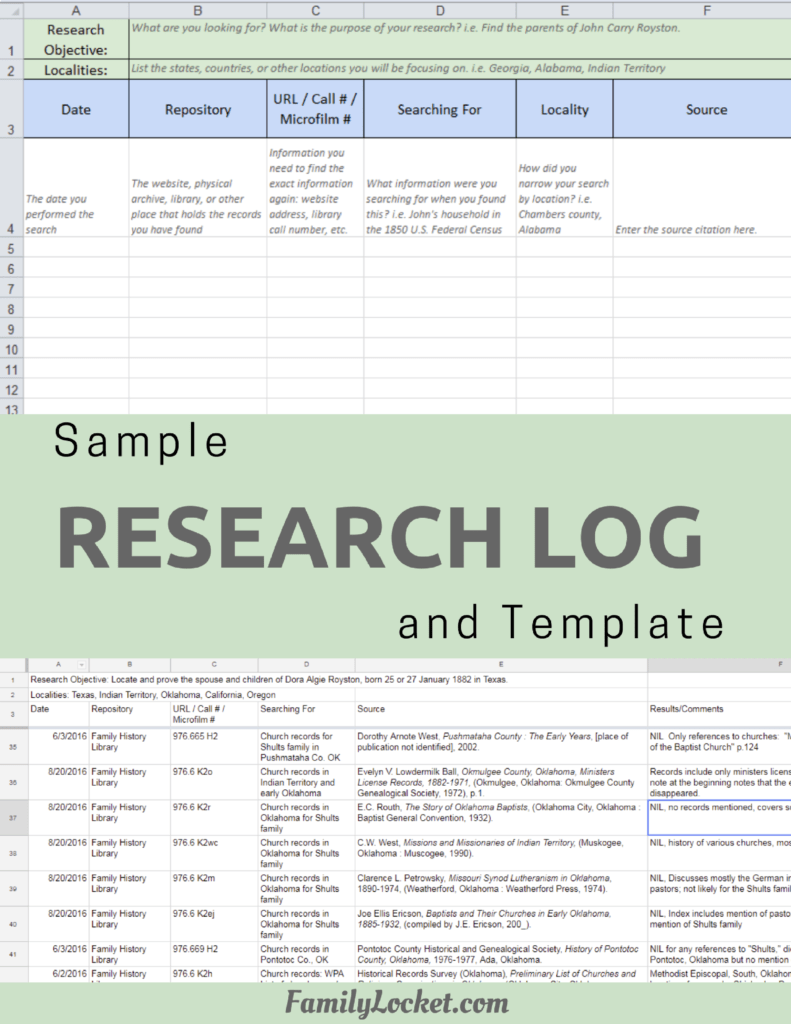
That’s really cool. So going back to it, you said about the ugly log. I think your log is actually really nice looking, but the fact that we sometimes go all over and research things that we don’t put in our research log is what you’re trying to track. And sometimes I will do some little quick searches just to figure out what the context was, and then I’ll need to incorporate that in my report, but I won’t have logged it. So it’s a really good idea to have this log running all the time, even when I’m doing my professional research and am keeping track in a spreadsheet, I could probably use them both. Is there a way to export some of the things in the Goldie May log and put them into my spreadsheet?
Richard Miller (10m 24s):
There isn’t that feature yet, but there will be in the future. I assume it’ll just be some kind of Excel or CSV export, so you can do what you want with it, but that’s something we’re thinking about for the future.
Nicole (10m 37s):
Very cool.
Richard Miller (10m 38s):
Yeah.
Nicole (10m 38s):
Thank you. So let’s talk a little bit more about how you got the idea for Goldie May and why you made it and just some more background.
Richard Miller (10m 46s):
Yeah. Well, before Goldie May, I worked at a couple of family history companies. So one of them was Family Link, which built a Facebook app to say who all of your relatives were. Family Link had a sister company called World Vital Records. And then afterwards I was on the team that created Mocavo. Mocavo was a Genealogy search engine and I was there for four years and Mocavo ended up joining with Find My Past. So I had had a little bit of time to work with the Find My Past team. Then since then I’ve been doing freelance web development and software development for clients and just kind of felt pulled back into family history. So part of it was, I’ve gotten more into family history myself, and then I’ve also watched, for example, my mom do family history and kind of watched her process and how she does it.
Richard Miller (11m 35s):
She does a lot of family history and watching her, I could see how something like Goldie May might help cause she might go down a big rabbit hole and she’s looking for some person or some record or something. And she opens all these tabs and a bunch of windows. And then she finally finds the thing she’s looking. And it’s sort of like, okay, how do I get it back to where I was on the tree? Like, what was that tab where I was looking at the tree and you kind of have to go back through your tabs or go back through your windows and it’s common for her and for others I’ve seen to just print out that document you’ve found because you don’t want to lose it. You’ve found this really helpful information. So you print that page out and then you go back to your tree and you, you’re kind of looking up at the screen and down at the paper to type in the things you’ve found.
Richard Miller (12m 23s):
That seems like a really common thing. You’ve got these two things you’re trying to look back and forth between. And so with Goldie May I’m trying to provide that where you have this side window to give you some reference material and help you stay focused. And when you’re working on your tree and your research and the other window,
Nicole (12m 40s):
That is so great. I think all of us can relate with having a bunch of things going all at once and not really remembering where we even started that whole idea of the rabbit hole. So thank you.
Richard Miller (12m 52s):
Yeah. That seems to be common. I hear of some people that use two monitors, cause you can have one screen with your research and one with your tree. Yeah. I’m hoping that more people can do that.
Diana (13m 2s):
Well, it sounds like you had these dual things going on. You had this background as a developer and you were in the early stages of building family history type software. And then you also had this background of a mother who loved Genealogy. So when did you actually start doing it yourself? What was your beginnings of interest in family history?
Richard Miller (13m 24s):
Oh, that’s a good question. I would call myself a late comer to doing Genealogy Research myself. I had just a passing knowledge of it when I worked at Mocavo and we were building a search engine for providing more records to people, but I was not involved in the process myself and so I’ve really come to know that process more personally in just the last couple of years, especially as I’ve gotten into Goldie May. So I’ve tried to get really familiar with the resources that are out there. I’m a Research Like a Pro podcast listener and especially those early podcasts, like the first 10 or so are kind of really about the basics. What’s the vocabulary of research and what’s the process.
Richard Miller (14m 6s):
And I listened to those a couple of times each and I’ve watched a lot of BYU family history library webinars with James Tanner and Catherine Grant and others, and really tried to familiarize myself with that process. But it’s been good. Yeah. It’s been nice to be in at myself and it’s really fulfilling
Nicole (14m 27s):
How great that’s awesome. So how do you think Goldie May will help people become a better researcher?
Richard Miller (14m 33s):
Good question. I think part of the way Goldie May can help is to just keep you focused. I know you two talk about this a lot. If you choose an objective and you can kind of stay focused on that, you can get a lot done because you’re staying focused. And so with Goldie May, as this sidebar window, you can choose an objective and it just puts it at the top of that sidebar window. So, you know, you’re working on it, it’s right there in front of your face. If you need to be reminded, then it also has a task list. It gives you a few tasks to work on yourself, or you can add your own and you can delete or make that task list, whatever you want it to be. And then it provides some locality guidance, which we can get into, it has The Research log.
Richard Miller (15m 16s):
But yeah, the combination of keeping you focused, helping you remember what you’re working on. And then I guess one of the other big things is as you are done for the day, if you’re done researching, you can close Goldie May and it just keeps all of your research together, that log and the tasks you’re working on for that particular objective and saves it. And so then later when you come back to it, you have all of your objectives listed there and you can enter into one of your objectives and pull up all those tasks and log again. So it’s a way to just remember where you were when you come back to it.
Nicole (15m 46s):
That is so important. Well, what a wonderful idea.
Diana (15m 50s):
And I love that you mentioned that you listened to our first 10 podcasts, where we talk about Research Like a Pro, because I think that that’s kind of evident that you use that background in building this, which of course makes us love it even more. So let’s go through it, each one of those steps of Research Like a Pro I think for our listeners, especially the one who asks the question in a Facebook group, how this all works with the process, it can be really helpful to talk about each step. You’ve mentioned several times, this idea of having an objective and focusing the window on Goldie May has a place for the objective at the top, or is there a different word that you use for that?
Richard Miller (16m 30s):
I do use the word objective. So I think some people would call it a goal, but I use the word objective like you do.
Diana (16m 38s):
Awesome. That makes it really clear for all of us who, who do Research Like a Pro. So when you did the little demo with us, I think you did something like, find this ancestors death record, so you’d put in something pretty specific on there. Is that correct?
Richard Miller (16m 53s):
Yeah. You know, it, it offers some objectives to you. Like maybe there are some missing children in this family or there’s one that says track the span of their life. That’s a pretty general objective, probably not a great research objective, but for a beginner and just for getting used to Goldie May or just getting familiar with a person it’s a, it’s a decent objective, but you can of course write your own. So you could write your own objective as specific or as general as you want
Diana (17m 23s):
I love hat you’ve got some samples because somebody brand new, they could get some ideas of something that they could do. And that’s a really great introduction to Genealogy having actual research question. So thank you for putting some ideas in there.
Richard Miller (17m 39s):
Yeah. You’re welcome. Thank you. Really, to me, the magic starts after you’ve chosen an objective. So if someone listening installs Goldie May, I think they’re going to get the most value if they see what it looks like after you’ve started an objective, that’s when the task list pops up. And I think that’s really where the magic begins because that’s where you get into the locality research and the timeline and stuff like that. So I would definitely recommend at least starting an objective so you see what that looks like.
Diana (18m 7s):
So the objectives have different tasks lists. Is that what I’m hearing?
Richard Miller (18m 12s):
Yeah, that’s right. So as you start in the objective, it gives you a few tasks. A couple of those are just a routine tasks, like be sure to check the ancestor’s timeline and just understand what’s going on there. Maybe it’s too common to just jump into research and forget to look at what’s already been done. And so if you were to go back and look at, what’s already done what sources are already there, you can look for anomalies that shouldn’t be there. So, and then after you’ve done those routine tasks, Goldie May provides some more specific tasks. So it, for example, suggests that you look at the birthplace and the death place of your, of your ancestor. And if you’ve ever used the FamilySearch Wiki, The Research Wiki, you know, that’s a great place to learn about places.
Richard Miller (18m 57s):
It doesn’t have any people in it, but it has places. And so if your ancestor was born in Madison county, Iowa, you can go over to the FamilySearch Wiki, you look up Madison county, Iowa, and then, you know, birth records began being kept. And this year death records were kept as of this year. And you get a little bit of a sense of that place. And so to make that really easy, to get over to the FamilySearch Wiki, Goldie May puts a link in the task that takes you directly to the Madison county page in the Wiki. So you don’t have to go find it. And it also puts in the locations for the death place of your ancestor. So the idea is that if you’re able to click over very quickly to the research Wiki and understand the places where your ancestor was born and died, then you’re more likely to do it, I guess.
Richard Miller (19m 42s):
I know you two suggest doing locality research, really understanding the place and Goldie May is trying to make that a lot easier to at least get the beginning stages of understanding the locality.
Nicole (19m 54s):
Well, that’s really important. I think a lot of people skip over that
Diana (19m 58s):
And I think it’s really important to, because as beginners, they may not even have a clue that that’s what you should do. So having that pop up, then they can click on it and find what’s there at their fingertips on the Wiki
Richard Miller (20m 12s):
Yeah, and for a really brand new beginner, one of the questions I’ve gotten is, what do I even do on the Wiki? So say I go to the Madison county page on the Wiki, what should I even be looking for it? Cause it’s a pretty long article. I think a good beginner task is to just look for what year did birth records start being kept and compare that to the birth that you have for your ancestor. Would you expect there to be civil birth records for your ancestor or not based on those two dates? That’s a pretty good beginner task.
Nicole (20m 39s):
Yeah. That’s really important after objective, the timeline and analysis is the second step of our process. So tell us how you’ve incorporated the timeline into Goldie May.
Richard Miller (20m 51s):
Okay. Yeah. Good question. So Goldie May is not doing the more complex timeline analysis that you two teach and do, it starts with suggesting that the user look at the FamilySearch timeline, just to get familiar with that. And then the next thing it does is it gives you tasks to look at the census records for every decade during your ancestor’s lifetime. And it also calculates the age of your ancestor at each time. It’s helpful to know that you’re looking for a 30 year old in the 1910 census, and you’re not just looking for any person of any age. And so by really narrowing down how old should this person be at this time and making sure you’ve checked all those censuses, you can really get a sense of the timeline.
Richard Miller (21m 35s):
So that’s the timeline idea. It’s definitely basic right now. And right now it only works with the US census, but in the future it will work with the UK census and state censuses and other collections. And the idea is we want to just suggest to you that user, where should your ancestor be at certain times and places? And if you can kind of narrow down the haystack that you’re looking for that needle in, then it’s a lot easier to find matches.
Nicole (22m 1s):
I love that. That’s so smart. So the timeline on FamilySearch is super great. So I pulled up my ancestor, Susanna Clanton, and I clicked on Goldie May and I chose the objective to track the course of Susanna’s life. And the first task is check the timeline for clues. And when I clicked on that, it opened up the FamilySearch timeline page for Susanna. So for those of you who are not familiar with FamilySearch, on a person’s profile page, they have the details tab and then the timeline tab sources tab and so forth. So the timeline tab is relatively new in the last few years. And it’s really neat because it shows you from the life events and their details where they lived in what year and their age and puts it on the map.
Nicole (22m 48s):
So this is an amazing tool. And looking at this all together with the Goldie May tasks on the side, I can see how this would be so useful to really just start here, looking at the starting point information, see where she lived and then go onto the next tasks, which are reviewing her in the censuses. So this is great.
Richard Miller (23m 8s):
Good, thanks. I appreciate that. Yeah. And you’re right. You can choose, you can click the timeline on the left in FamilySearch, or you can click any of the gold links on Goldie May on the right side and be taken to the timeline as well. So it’s intended to just remind you to get there and make sure you’ve checked it like you did.
Diana (23m 27s):
I think that as we’re working on these collaborative trees, you know, there’s FamilySearch and then there’s others out there, or even an Ancestry online tree, sometimes that information has not been corroborated by anyone. People have been merged and old records, old family trees have been brought in. And so it’s really up to us to use that timeline and go through it and see if things make sense. You know, FamilySearch also does the little red icons, you know, this person’s mother was not of childbearing age or whatever, you know, they give you the little things that there might be something wrong in the family tree. Yeah, the warnings. But we really have to use our own brain to look through that timeline and think for ourself, because that’s where our ideas are going to come for more research, great tool to have that timeline built right into Goldie May.
Diana (24m 15s):
So let’s go on to the next portion of Research Like a Pro, which is the locality. And so you mentioned that there is a link to the FamilySearch research Wiki, right from Goldie May. Is that right?
Richard Miller (24m 29s):
That’s right. Yeah. In the task list, you’ll see a task for research researching the birthplace and the death place. And then the other place you’ll see locality help is at the top next to the person’s name. If you’re researching Leonard Wilson, in my case, I can click the little down arrow next to his name and it will bring up his birth and death place and other places in the future. And you can click on any of the gold links for places to see, to see resources for those places. So for example, if you click Madison county, you’ll be taken to that page on the, on the Wiki, where if you click on a state like Iowa, you can be taken to the Wiki page for Iowa or the FamilySearch research page for Iowa, which is a page you may have seen before.
Richard Miller (25m 15s):
That has kind of all of the Iowa related collections in one place. And then we also have a link to the Iowa page for the Family History Guide, where you can from there, go off and find many more resources for Iowa. So right now we’re supporting the US states and counties. In the future we’ll add additional countries and counties as well.
Diana (25m 37s):
I love that you have so many ideas for the future, that you’ve got a vision for where this can go, because that’s exciting for those of us who do research outside of the United States. And I think that locality information for other countries might even be more valuable than United States. Because for me, if I’m going to start researching in Germany to have some links, right there will be so helpful. So that’s exciting to think of the future, but I just wanted to clarify something. So when you click the little down arrow next to a person’s name, it’s picking up localities from like, say, census records that have already been attached to that person, or, you know, how is it finding some of these localities besides birth and death places?
Richard Miller (26m 22s):
Good question. Those localities are coming from the details tab of FamilySearch. So I think we often call those the conclusions. So if someone’s put a death or birthplace into the details tab, it will pull those out of the record and find the links to those places, to the Wiki. It’s not yet working with the sources.
Diana (26m 44s):
Okay. Again, we’d have to use our own thought process to look and try to figure out some other places to go, but having the links to the Family History Guide and the Wiki can remind us to go look for some locality information. And I love that you put the Family History Guide in there because that’s a great starting point to learn about locality, because it will link you to records on Ancestry, Find My Past, My Heritage and just give a lot of information about a specific place. So that’s a great partnership that you’ve got going with the Family History Guide there.
Richard Miller (27m 19s):
Yeah. Maybe this is a good time to mention too, that if you find some great resource on another website, there’s an option in Goldie May to create a screenshot or a little clipping of that thing you found. So if you right click on the G icon, you’ll have this option that says, take a screenshot. And then your mouse cursor will look like crosshairs. And if you just drag a box across some portion of the screen, it will save that clipping into your research log. So that’s a great way to, you know, if you find some great map or charts or other fact about somewhere you’re, you’re looking, you can kind of build up a little locality guide essentially by saving clippings into your log.
Nicole (28m 2s):
Awesome. I love screenshots.
Diana (28m 5s):
Can you also do a link?
Richard Miller (28m 6s):
Yeah, it’s saving all the links. So if there’s one in particular that you’ve found really helpful, there’s an option to put a heart next to the link. So it’s kind of a heart like Instagram or other social media sites where you can heart something that you really liked. It’s not shared with anybody. This is just your own private log, but you can just heart something. Or you can also put a frowny face to say, you know, this was not helpful. I mean, you can decide what a frowny face means to you, but maybe that’s a way to talk about a negative result. You’ve looked and didn’t find something in this particular place. So it’s a, it’s a frowny face negative result. And that you could also leave a comment of course, on any of these things to just remind yourself what it was,
Nicole (28m 51s):
How great. I’ve been clicking around as you’ve been talking. And I clicked on the arrow next to Susanna’s name and it popped down and showed me all the places that are linked. And I really liked that you have a link to the FamilySearch help center for Missouri or for whatever state. And it has videos you can watch to learn about how to research there. And I don’t use this resource very much. So this is just a great reminder to go and check out the FamilySearch webinars.
Richard Miller (29m 22s):
Yeah. Hopefully if you’re a brand new to some area, those videos could get you started quickly along with the other resources that are there. The other thing that’s nice I think about clicking on that down arrow is it lists all of the lists, the spouse name and the spouse’s birth and death and the names of the children and the names of the parents. This was an idea from Olivia Jewell, actually, that she said it would be really nice to just have all that in one place, because as you’re searching, you don’t want to have to go and look back at the original FamilySearch tab. So if you had all of those names, all the people around that person in the family, then it makes it really easy to search for that person because you know, all of the relations around them.
Nicole (30m 2s):
Yeah. It’s kind of like taking those unique identifiers for your objective and just putting them there for you so that, you know, when I make my objective, I don’t have to write and they married so-and-so on such and such date. It’s just automatically populated for me.
Richard Miller (30m 16s):
Yeah. And that’s the benefit of using the FamilySearch tree to get started here. And then that’s why we kind of worked from the FamilySearch tree. In the future you know, we’ll work with Ancestry and other trees, but because the FamilySearch API lets me grab all of that data for you and put it right there that’s really nice for working with the FamilySearch.
Nicole (30m 36s):
Cool. Let’s talk about research planning. I noticed that the bottom of my task list for Susanna Clanton, that there is a task to visit the US Record Finder to discover more places to search. So that’s a resource we often recommend in the research planning stage. And then what else can I do if I want to plan some more tasks?
Richard Miller (30m 55s):
Yeah. Right now it’s, most of the tasks are related to the census and then in the future, we’ll have other collections as well. I love their United States record finer too, because it’s a great kind of jumping off point from wherever you were. If your person came from another country, then maybe you’re looking for some immigration records. And that record finder can tell you where to find great immigration records. I would add those as tasks to your list. So you can click add a task at the bottom in the future. We’ll offer more tasks to you, but research planning as it is now is kind of about managing that task list, adding something to it deleting. Maybe you want to make your objective specific enough that you can call it done at some point and wrap it up and then do a new objective.
Richard Miller (31m 41s):
But you can just use that task list as much as you want to. You want to just add a task and say, you know, when I come back to this in a couple of weeks, I’m going to do this and this and this, and then you close it and come back to it later and the task is right there for you.
Nicole (31m 53s):
Yeah. I love that. It’s nice that you can delete some of the suggested tasks because you don’t need to do them or you can check them off like they’re done. You can add a new task.
Richard Miller (32m 2s):
Yeah, that’s right.
Nicole (32m 4s):
That’s great.
Diana (32m 5s):
I really love checking things off when they’re done. So I think that’s a really great idea because you might be searching for a death record, let’s say on FamilySearch, you’re looking at your individual and there’s really no death information. You could have a list of tasks, you know, check Find a Grave, check Billion Graves, check the death certificates for that state, check death certificates for the county. You know, you can have a really long list. And then as you’re having negative searches, you know, you’ve just put a check there, make a comment, say, Nope, it’s not here. That’s kind of how it works with our research dogs that we do, you know, in spreadsheets we put in the search and then we give our comments.
Diana (32m 45s):
So this is a little bit different, but it sounds like it’s the same philosophy, that you can make your plan and then as you search it, you can do a little check in a comment. And that becomes your research log. You know, give us some more thoughts about Goldie May as a research log.
Richard Miller (33m 1s):
Yeah. You know, I really liked that idea of having your plan and your log in the same spreadsheet because you can see them side by side. But right now The Research log is of course logging every website you visit and you can put the heart or the frowny face next to them or leave comments. You can also write a note to yourself that says, I’m going to now start looking for such and such things. And you can kind of narrate to yourself and, you know, as you to talk about, it’s really important to write out your findings because as you’re processing these things, mentally, you make connections. And so the research log and that kind of note to yourself gives you a little bit of a chance to do that, to process your thoughts.
Richard Miller (33m 42s):
And, and hopefully that helps you in the finding process. If you log something you don’t want to log, like you go to check your email while you’re in the middle of your research, it will log that too. So you can just delete that from your log. And then if you want to close Goldie May, you can click the G, it’s black and white when it’s off, and then it’s black and gold when it’s on. So if you see it lit up with gold and you can push the button again to turn it off.
Diana (34m 7s):
So Goldie May is your online research log, and so we wouldn’t have to put in a URL or, you know, source citation information, we would just have a link directly to whatever website we are looking while Goldie May is on everything that we click on, It’s going to record that information, correct?
Richard Miller (34m 27s):
Right. Because of feedback from you and others, I would like to offer some kind of source citation in the future, maybe a separate field for that. But until then, probably the best way to do that is to just use the comments. So if you’ve found something that’s really useful and you know, you want to take this, not just from your ugly log, but over to your full, complete log in an Excel spreadsheet. Maybe you want to just hit the, hit the comment button. It’s a little sticky note. And then below that you could paste in your citation and leave it there. And of course the link is right above it. The, all the gold links would take you back to the original pages that you’re searching, but that’s probably the best place to leave a citation for now.
Richard Miller (35m 10s):
And you’ll have it right there in context.
Nicole (35m 13s):
That’s awesome. And beginners could even copy and paste the citation from the website with, you know, FamilySearch, their records, all come with citations or some sort of information about the source. So I love that you added that comment field. So our citations are hanging up for people just right along with the research logs. So it would be really cool if you could do some kind of automatic source citation, although there is tremendous benefit for researchers to create source citations on their own once they get to that point to learn about the source and really understand it and things. So there’s both, it’s good to have both options.
Richard Miller (35m 50s):
It sounds like eating your vegetables a little bit. Like it’s a good idea. And it’s just hard to do sometimes
Diana (35m 58s):
When you do go to doing source citations on here, you know, what you could do is just put in the five questions that people just fill in the blanks. Cause I do that when I’m teaching people, you know, who created the record? What is the record you just put in those, and then you have to fill those in and boom, you’ve got a source citation created. Wouldn’t that be cool?
Richard Miller (36m 17s):
Good idea.
Diana (36m 17s):
I would like that!
Richard Miller (36m 18s):
Yeah, that’d be really cool. And are those five answers solid enough for the formal citation?
Nicole (36m 23s):
It’s a little more complex than that,
Diana (36m 27s):
But you know what, for someone that’s working with this, I think that that could work really well because there could be a little clue, you know, what is the record? And then there could be a little box that pops up and to explain what that means. What’s the name of the person that’s in the record list, the type of record, you know, it could have some helps on what you should put in that field.
Richard Miller (36m 50s):
Yeah, I like that.
Diana (36m 53s):
Well, great. Well, let’s talk about the final step of process, which is writing a report. And it sounds like your comment field is where you get to put your conclusions or your notes to yourself. Then when you’re going to write a full-blown report, you’ve got all that information. So what are your thoughts on writing using this?
Richard Miller (37m 12s):
I’ve heard you talk about that. Some people write their report as they go and other people write it at the end. And so maybe you Goldie May is really well suited for writing the report as you go, you could leave comments to yourself as you’re going. And then later when you’re writing that more formal report, you can go back through the log and see this paragraph was really important I’ll put this here, I’ll copy this paragraph over to there and kind of piece together the more formal version later. The log will be chronological, of course, but maybe when you get to the formal report, it won’t be exactly chronological because you’ll put certain things that are more important at the top and smaller details at the bottom or whatever it may be. That’s probably how I would use it.
Diana (37m 54s):
That’s a really neat idea. Now, when we’re working in FamilySearch, there is a place called the life sketch on actual FamilySearch page. So people in essence could do all this research using Goldie May, right, in some of these conclusions in the little comments box, and then they could take all of that and put that into the life sketch. They could really create a nice record of a person’s life pretty easily by following that process,
Richard Miller (38m 23s):
Yeah, that’s right. In the future maybe we can have a good export option where you export all of your research and attach that to the family tree as well so people can know what you’ve looked at. You know, as you know, there’s not a good place to save negative results in the tree. I know you two have thought of this before. Just save all that research. So the tree,
Diana (38m 42s):
Okay. That would be fabulous so that anybody else could see my Goldie May research log after it’s all fixed up, you know, taking out my email that I, that I clicked on while I was drinking, partying. But seriously, I love that idea that you could export that. And that could also be one of the sources, or in the gallery. So just think if people would actually do this kind of research when working on the tree, how much better the accuracy of that tree would be. Wow. That’s really exciting to think about.
Richard Miller (39m 14s):
Yeah, it’s a fun, fun world that we are in genealogy.
Nicole (39m 18s):
It really is. And you know, this reminds me of a lecture that Tom Jones gave at Salt Lake Institute of Genealogy, as everyone knows, he’s a really wise teacher in the genealogy field and he’s been doing it for many years. So he gave this great talk about The Advance of Research Habits over the Last Few Decades and the Downside. And it was fun because he talked about how he used to have to type up his conclusions on a typewriter and use a lot of white out and retyping and, and some of the difficult parts of research back in the day where, you know, you didn’t have an index. So you had to search through every page of the county census. And he actually talked about how there were a lot of benefits to doing that.
Nicole (39m 60s):
And you learned a lot about the context and you understood the records better because you had to look at the originals. There was no index or transcription. And one of the things that he said in the lecture is that a lot of the time the people designing the family history websites are trying to make it easier, right? But that sometimes the simplicity remove some of the helpful guidance and the context that actually makes research easier. So I love Richard that you have designed this tool that adds some of that back in the helpful guidance and the locality ideas and keeping track of what you’ve done.
Nicole (40m 40s):
Some of the methodology that sometimes the websites don’t offer. I always think of Ancestry and how people can just so easily copy other people’s trees without adding a real source, just to source like Ancestry tree is often beginners will think, oh, this is so easy until they get to something that isn’t very easy and then they give up. So I think this tool is such a great answer to some of that beginner frustration. When you get to a spot where you do need to set an objective to find out the information, you do need to get that helpful locality information from the Wiki and from webinars and lessons that can teach you how to do it. And so this is such a great tool for helping us with some of the bad research habits that we have because of the great tools that we’ve been given.
Richard Miller (41m 28s):
Oh, thank you. Yeah. Thank you, I appreciate that. I, it reminds me too, that I’ve run into some people that say, Hey, if I have the 1900 census in my ancestor’s page, why don’t you check that off for me? Because you’re sitting there looking at it and the check box is right there. Why do I have to check it off myself? And it’s a good question. I mean, maybe in the future, that should be an option to just check off all those ones for you, if you already have those censuses. But I think there’s something fun, like Diana said to just checking off the box and saying, I followed the process, I saw what was there and I’ll check it off.
Nicole (42m 7s):
Yeah, exactly. And I would encourage people to actually go look at every image, the original images. I think that’s one of the main things that has been lost when you attach a hint, you don’t even have to look at the original image. You can just attach it by looking at the transcription. And I had a client once who hired me to research her grandmother’s birth. And the answer was in a source that she had already attached to her FamilySearch tree. And she hadn’t looked at the original image, which that 1880 census, instead of giving just the place of birth as England had given the exact county within England, where she was born, which led to finding her, her baptism record. And so I love that you encourage people on the task list to go and look at the census, even though it’s already attached and review it and make sure you’re not missing any clues.
Richard Miller (42m 55s):
Yeah. Maybe you’re missing some children or maybe there’s something interesting about a non-family member living with the family. So yeah, I think that’s a great place to go.
Diana (43m 5s):
So one of my thoughts as you two have been talking is this whole idea of future research suggestions, that’s part of the report writing, and that could be comments. You know, if people are looking at that original 1900 image, they could say, oh, there is this extra person in the family I need to figure out. So that could go into their comments section for future research. And that is the real value of looking at the records because you get the ideas of where to go next, the censuses, I mean, every record is going to have clues for you. So I think there’s real value in not checking that off for the person automatically having someone actually go look themselves and see if there’s anything new that you can learn for beginners to realize there’s value in looking at the original records.
Nicole (43m 53s):
Yeah. And I love that you can take a screenshot because you could really take a screenshot that shows up in your log, cause I did that, just not a practice. And then I can make a comment on my screenshot that says this clue here seems really helpful I should do something more with that.
Richard Miller (44m 9s):
Yeah. You reminded me too, when I talked to those people at roots tech, a few people mentioned how it’s just so common to go down rabbit holes. And I know you two have talked about that a lot. It’s just, you might find something as you’re researching, that’s not related to your current objective, but you definitely don’t want to lose it for later. And so, you know, I think in the future, I’d really like Goldie May to embrace the fact that they’re rabbit holes instead of fighting it. And if Goldie May can help you just take a little note and say, okay, let’s check this later. Then you can just leave that aside and your mind can be at ease and you can just stay focused on your current objective, knowing that you can come back to your other possible objectives in the future.
Nicole (44m 47s):
Exactly, capturing that idea.
Diana (44m 49s):
Yeah. Maybe even having an actual box for future research ideas.
Richard Miller (44m 54s):
Yeah.
Diana (44m 54s):
See, we’ve given you so many ideas about how to add things to Goldie May, right? We’re excited because we have always envisioned something like this, but we didn’t have the know how to put it together.
Richard Miller (45m 6s):
Well, thank you for being such good teachers and your podcast has been really great for me to learn a lot and I really appreciate it.
Nicole (45m 14s):
Well, thank you so much, Richard. This has been an absolute delight and I’m excited to start using Goldie May and everybody out there who wants to try using Goldie May go to GoldieMay.com, G O L D I E M A Y.com. And you can learn more about it. You can click the link to install Goldie May into your Chrome browser and get started with using it.
Diana (45m 39s):
So Richard, it has been so great having you here today. If someone wants to reach out to you and maybe give you some ideas or ask you questions, how can they get in touch with you?
Richard Miller (45m 51s):
Well, I love email, so you can reach me at Richard@GoldieMay.com and I’d love to hear any feedback or suggestions or anything else.
Nicole (45m 60s):
Great. Thank you so much for coming on today. It was so fun talking and we’ll talk to you again soon. Bye bye.
Richard Miller (46m 5s):
Thank you. It’s a lot of fun.
Diana (46m 10s):
Bye bye everyone.
Nicole (46m 10s):
Thank you for listening to Research Like a Pro with Diana Elder, accredited genealogy professional and Nicole Dyer. We hope that something you heard today will help you make progress in your own genealogy research. If you like what you heard, please leave us a review on iTunes or Stitcher or visit our website, FamilyLocket.com to contact us. You can find our book Research Like a Pro a Genealogist’s Guide on Amazon.com and other booksellers. We hope you’ll start now to Research Like a Pro.
Links
How to Research Like a Pro with Goldie May – guest blog post by Richard Miller on Family Locket
Goldie May Chrome Extension in the Chrome Store
Genealogy Research in the 21st Century Part I: Genealogy Research is Still Hard – Nicole’s article at Family Locket about Tom Jones’ SLIG lecture, “The Advance of Research Habits over Recent Decades—And the Downside.”
Study Group – more information and email list
Research Like a Pro: A Genealogist’s Guide by Diana Elder with Nicole Dyer on Amazon.com
Thank you
Thanks for listening! We hope that you will share your thoughts about our podcast and help us out by doing the following:
Share an honest review on iTunes or Stitcher. You can easily write a review with Stitcher, without creating an account. Just scroll to the bottom of the page and click “write a review.” You simply provide a nickname and an email address that will not be published. We value your feedback and your ratings really help this podcast reach others. If you leave a review, we will read it on the podcast and answer any questions that you bring up in your review. Thank you!
Leave a comment in the comment or question in the comment section below.
Share the episode on Twitter, Facebook, or Pinterest.
Subscribe on iTunes, Stitcher, Google Play, or your favorite podcast app.
Sign up for our newsletter to receive notifications of new episodes.
Check out this list of genealogy podcasts from Feedspot: Top 20 Genealogy Podcasts



2 Comments
Leave your reply.